Pia Chat Installation Pre-requisites
Pia Chat requires specific Microsoft Graph permissions to perform actions in Microsoft Teams. Some of these permissions are granted during onboarding while the others need to be granted to Pia if you wish to use Pia Chat. This article outlines the Graph scopes needed for a successful Pia Chat installation and explains how each permission is used within Teams.
Installing Pia Chat
When the Pia Chat toggle is turned On for a Client, a pop-up will show as below.
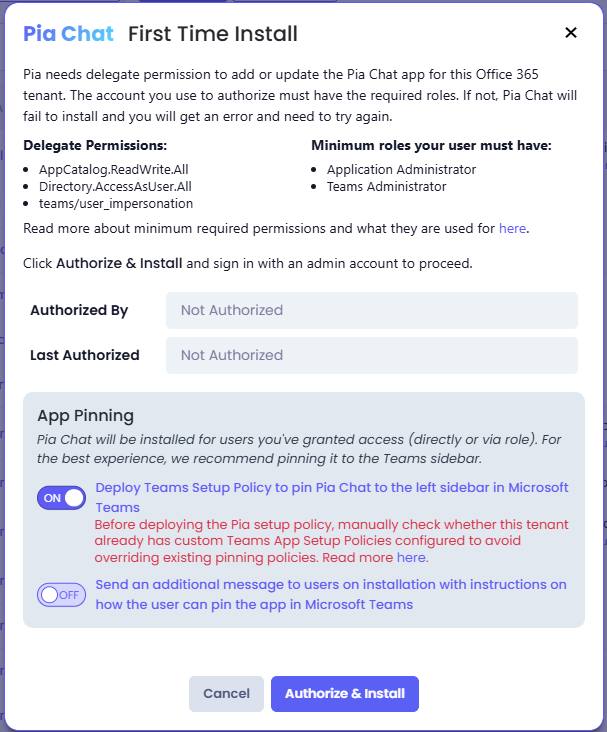
Below is a breakdown of the permissions and Microsoft Entra ID roles required to ensure a successful Pia Chat installation and configuration experience.
Required MS Graph Delegate Permissions
| Scopes | What they are used for |
|---|---|
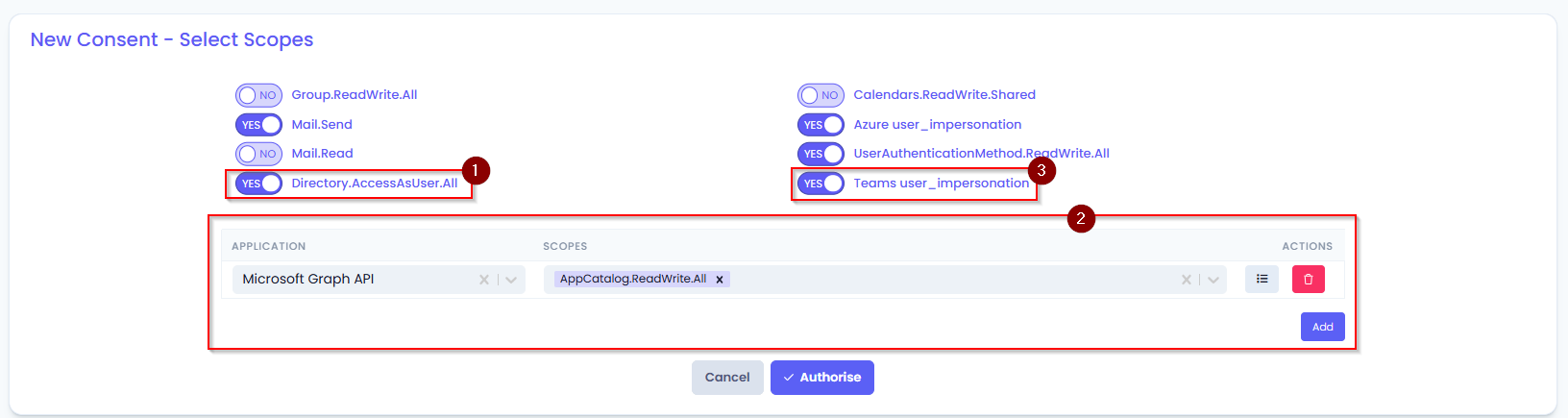
| Directory.AccessAsUser.All | This permission allows Pia Chat to act exactly as the signed‑in user when accessing Microsoft Entra ID (Azure AD) directory resources. This scope required during tenant configuration so you will likely have this scope enabled during onboarding. |
| AppCatalog.ReadWrite.All | This permission is required for uploading Pia Chat in your Teams, updating versions and removing Pia Chat. This permission is newly required and must be assigned for Pia Chat Installation. |
| teams/user_impersonation | This permission enables Teams left-rail pinning feature i.e. allows Pia Chat to be pinned in the left menu in Teams which is recommended for best user experience as this allows easy access to Pia Chat. |
Minimum roles your user must have
In addition to above permissions, the account you use to authorize must have at least the following Microsoft Entra roles.
| Roles | What they are used for |
|---|---|
| Teams administrator | This role will give the user permissions to control how Microsoft Teams is configured, managed, and governed across the entire tenant Teams which is required to manage Pia Chat in Teams. |
| Application Administrator | This is a Microsoft Entra ID (Azure AD) role that gives the user the ability to fully manage enterprise applications and app registrations in your tenant. |
App Pinning options
Option: Deploy a Teams Setup Policy to Pin Pia Chat in the Microsoft Teams Sidebar
This option automatically pins Pia Chat to the left navigation bar in Microsoft Teams by creating and deploying a Microsoft Teams app setup policy.
During the installation process, Pia creates the required policy and assigns it to users who are configured to receive Pia Chat through their assigned role. Once the policy has been applied, Pia Chat will appear in the Teams navigation bar, providing users with consistent and easy access to the application.
Option: Send User Pinning Instructions During Installation
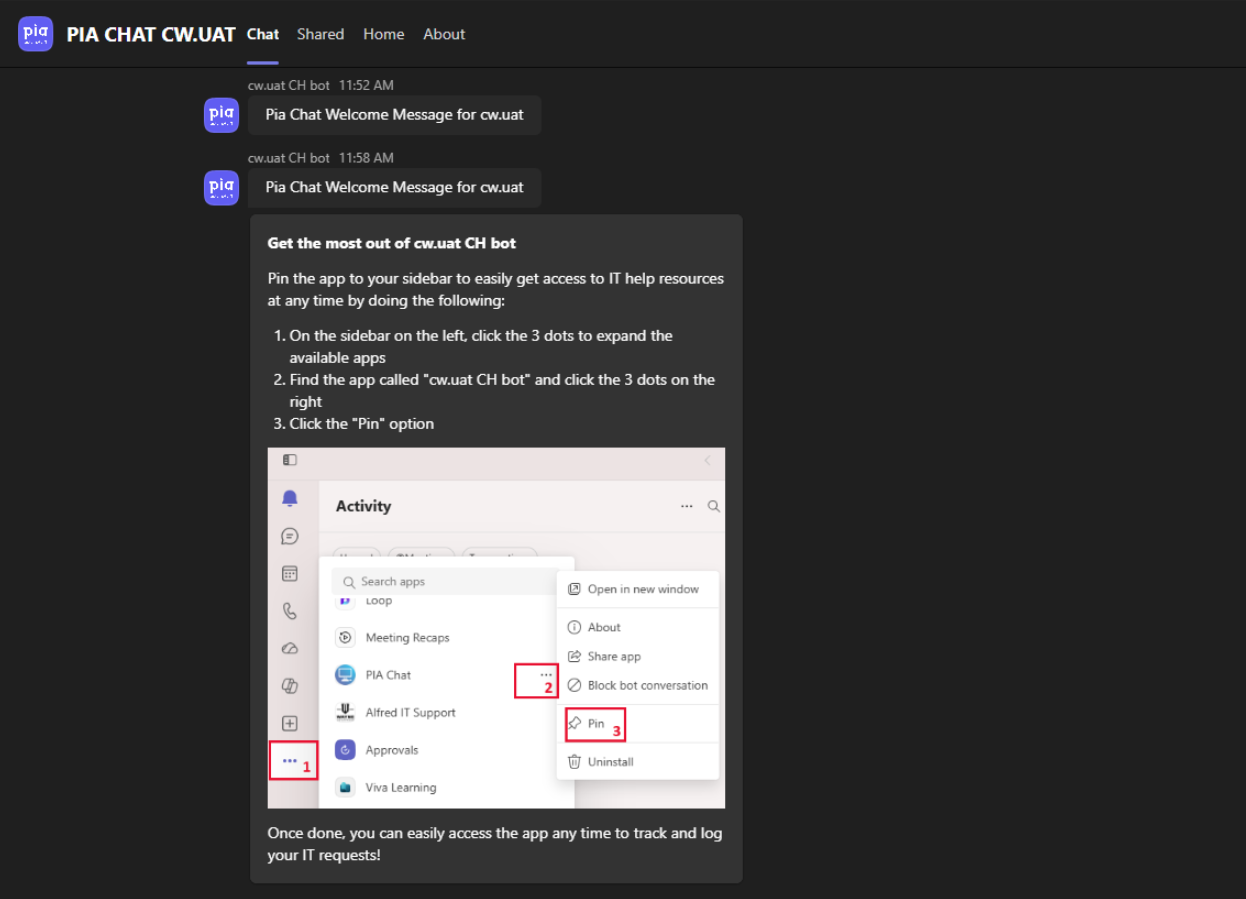
This option sends users an additional welcome message after Pia Chat has been installed in Microsoft Teams.The message provides step-by-step instructions to help users manually pin Pia Chat to the Microsoft Teams navigation bar, making it easier to access from within Teams.
This option is intended for organizations that prefer not to deploy a Teams app setup policy for automatic pinning or that wish to retain their existing Teams app setup policies while still encouraging users to pin Pia Chat themselves.